

How To Use Archidekt, the MTG Deckbuilding Site
Archidekt is a Magic: The Gathering deckbuilding and collection site.
You can reference this guide to Archidekt's key features as both a deckbuilder, a playtester, and a collection tracker.
If this guide doesn't answer all your questions, then check out Archidekt's FAQ page, or ask directly in the Forums or Archidekt Discord.
What Is Archidekt?
Archidekt is a deckbuilding, collection management, and social platform website for Magic: The Gathering. Here are just a few of the things you can do on Archidekt:
- Digitally organize the cards you own
- Create decks for your preferred format
- Create custom cards
- Playtest decks
- See what other players are cooking up
- Collaborate with a friend
Many of the site's tools are powered by Scryfall.
Additionally, Archidekt provides special features for Commander, via integration with EDHREC and Commander Spellbook.

If you don't have an account, click the Register link in the top right corner. The signup page looks like this:

Fill out the required fields, make your optional selections, and Register.
The required and optional fields are clearly labeled. After you log in, your username will appear in place of the Register button.
If you don't want to create an account, you can still view public decks and build decks in the sandbox.

The home page is your portal to deckbuilding paradise.
Everything on Archidekt is easily accessible from the home page. Logging into the site replaces the Register link with your user name in the top right corner. Clicking your user name accesses features and controls specific to your account.

Archidekt user dropdown menu
The username menu contains quick links to start something new, work on your existing projects, or manage your profile.
The left side of the top menu provides links to card search, as well as all the main site pages.
The Decks button opens a list of links to your decks, public decks, and decks other users invited you to collaborate on.
This menu also shortcuts to making a new deck or comparing existing decks.

Access thousands of existing decks or make a new one through the Decks menu.
The other links on the top menu include the card search, site news, your collection, and the public forums.
Moving down the home page, you'll see a mix of personal and public content. The home search bar can find cards, decks, and users. Below the home page search bar, you can see tabs for My Stuff and Community Stuff.
My Stuff displays your most recently updated decks, site news, decks from users you follow, your card packages, other decks you've viewed, and feature voting.
Community Stuff populates new and trending things on Archidekt. This page is a snapshot of what your fellow brewers are up to.
Look at recent decks by other users, see which cards are heating up, and check the pulse on popular deck tags.
You'll also find a showcase of the finalists and submissions from recent deckbuilding competitions, which are open every month to Archidekt users!
Building a Deck
Make a New Deck
Archidekt provides several avenues to create a new deck on the site.
For starters, there's a big New deck button on the home page.
Atop every page on the site, the pop-up Decks menu and user name menu both have a new deck link.

Make a new deck for any format recognized by Scryfall, or choose Custom.
The deck creation page features several options.
Fill out each field, and select preferences. If the chosen format uses a commander, you may pre-select that card here.
Regardless of deck format, you can add card packages, choose a destination folder, and pick card categories to jump-start your build.
Clone an Existing Deck
You may copy another deck to create a new deck in your profile.
When viewing a deck page that belongs to another user, the Clone deck button is near the top of the page on the left.
If you want to clone your own deck, the Clone deck button is in the Extras menu.
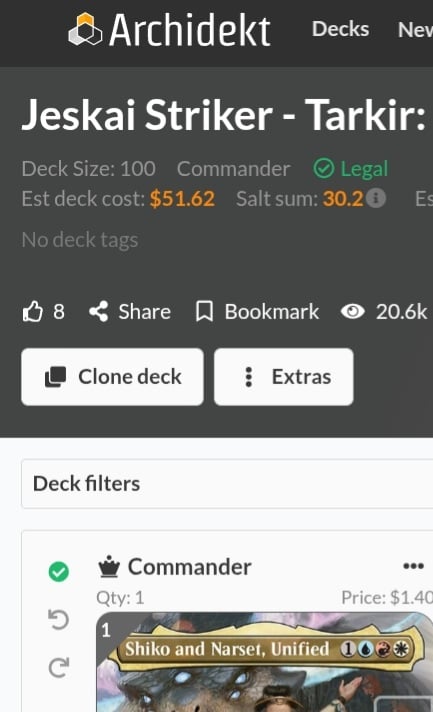
Clone any deck you have access to.
The deck cloning feature allows you to rename the copy, choose a destination folder, and select preferences specific to how the deck will appear to you and others.
For every deck, there is an individual deck page.
The deck page visualizes your deck and gives you the controls to build and playtest it.
It's your deck; Archidekt's tools and features are flexible so you can build your way.

The top of the deck page is your deckbuilding dashboard.
From the top, the deck page includes basic information about the deck. A red "Errors" next to the format indicates the deck is not legal for the chosen format. Clicking on Errors will display a pop-up with an explanation of each error that must be corrected to make a legal deck.
Next, give a deck a thumbs up if you like it. This row includes links to Share, Bookmark, and Collaborate. The eyeball indicates how many times a deck has been viewed by anyone other than the owner.
Finally, some buttons that actually do something. The first two buttons on the deck page are Import cards and Extras.

Import Cards as text or Archidekt files.
Pressing the Import button opens a pop-up screen. All the cards in the deck are listed in text format. You can make changes manually here, or import an entire Archidekt file.

The Extras menu is a convenient deckbuilding toolkit.
The Extras menu is the Swiss Army knife of buttons. Every item in this menu accesses an intuitive utility. Deck history and Deck settings expand to more specific options.

Deck history is an incredible deckbuilding time machine.
Archidekt records changes to your deck so you can go back in time to change your deckbuilding present.

Access the nerve center of your deck through deck settings.
The options in Deck settings give you direct control over what your deck is and how people interact with it. You may change the deck's name, format, accessibility, and various organizational preferences.
Quick add
The search bar at the top of the deck page is customizable so you can add the cards you want using terms you're familiar with.

Change the search bar to suit your preferences.
The simplest option here is the Quick add mode, which adds cards by name without any other specificity. You can preselect categories and automatically filter for format legality. Additionally, you can refine this search bar through Detailed add or Syntax modes.
Advanced search
The big orange "Search" button on the deck page opens a full search menu.

Advanced search uses terms Scryfall users will recognize.
The card search is modal; simple, advanced, and syntax options give you control of how you find and add cards for your deck.
Archidekt's search tools use Scryfall, giving you access to the most powerful Magic card database without jumping between screens or tabs.
If you prefer to use Scryfall directly, you can drag and drop card images from Scryfall into your deck on Archidekt. Drag and drop also works from EDHREC.
Card Packages
Archidekt's card packages are a great way to accelerate your deckbuilding process. Any user may create a card package, similar to creating a deck. You may add packages in the new deck screen, or later through the Extras menu.
Tools for Commander
Commander decks on Archidekt gain access to special card search tools powered by EDHREC and Commander Spellbook.

Commander decks have access to EDH Recs, Landbase, and Combos
The EDH Recs tab queries EDHREC for cards based on your commander and the cards already in your deck.
The Landbase tab shows you land cards based on popularity or cycle, all within your commander's color identity.
The Combos tab finds complete and partial combos in your deck, to help you power up your combo game, or tailor your deck's Bracket level.
These functions on the top right side of deck page change the way you see a deck. These tools are visual only, and work independently for each user.
Any user can change the view, group, sort, price, and filters on any deck page without affecting what other users see.

A screenshot of organizational options on the deck page.
View
Four viewing options allow you to see cards the way you prefer.
The default is Stacks, and the other options are Text, Grid, and Table.
View settings further improve the visual experience by adjusting card image size, margins, and other details.
Group by
The Group function changes how the cards are lumped together.
The default categories will display cards in groups by their primary assigned category.
There are many other grouping options to help you see the deck from different perspectives.
Sort by
This function changes how cards are organized within a group.
The default is alphabetical, and there are 16 other sorting options.
You may also toggle between ascending and descending order for sorting.
Price source
This data is useful if you plan to purchase cards through a particular online marketplace, or if you're building with a budget restriction.
Archidekt shows you two price sources for comparison.
Deck filter
This little text field packs a lot of power for how you view your deck.
In the simplest terms, you may enter a card name to find it in the deck without manually scrolling.
Typing a card name into the deck filter removes all other cards from view.
Clicking the plus icon presents you with additional filter options, such as card type, color tag, and collection status, among others.
Clicking the cog icon allows you to toggle from this "Local filter" to "Syntax filter."
The "Syntax filters" accepts Scryfall's robust syntax terms to tune the viewed portion of a deck.
For example, the syntax "o:target" will show only cards with the word "target" in the rules text.
Every card in a deck has a few buttons for managing the card.

Color tag, quantity and detail buttons help you manage each card.
In the top left, the Color tag button also shows the card quantity. You can use default color tags or make your own.
On the right side of the card image, the + and - buttons increase or decrease card quantity.
The > button accesses Card options and other useful card management tools.

Pinning a card saves it for later use in a visual clipboard. There are multiple ways to pin a card.
Right-clicking on a card image, or selecting the three-dot menu below a card image opens an action menu.

The card action menu includes the Pin card option.
The hot key "W" works to pin a card when the menu is open, and when your cursor is hovering over a card. You can also pin cards while viewing the card details screen.

The card details screen includes a Pin card button.
You may access your pinned cards via the Pin icon in the top right corner of the screen, next to the Bell icon for alerts. If you hover a cursor over a card you already pinned, a green pin appears on the card's left edge. Clicking a green Pin icon also opens the pinned cards screen.

Click the Pin button to open the Pinned cards screen.
On the pinned cards page, you can add notes to individual cards via card details. Click the arrow button along the right side of each card to view the card details. The pinned cards menu includes the same filters available on the deck page, along with a variety of sort options.

Filter and sort your Pinned cards just like cards in a deck.
You can add Pinned cards to any of your decks via the card details menu. You can also drag and drop pinned cards into a deck you’re actively working on. The Extras button at the top of the pinned cards menu allows you to buy your pinned cards from select vendors, remove all pinned cards, add all pinned cards to a deck, or create a new deck using your pinned cards. A maximum of 150 cards can be pinned at a time.
Playtester
Archidekt's Playtester is the best way to test a deck without the physical cards.
You may playtest your own decks, public decks, or decks in the sandbox.
Test out your theory crafting, try that Commander precon before you buy it, or take another player's deck for a spin.

The three dots on the deck thumbnail open a menu.
There are two main ways to access the Playtester.
Click the three dots on any deck thumbnail to see your options, including Playtest deck. This link skips the deck page and opens the Playtester directly.

Open the Playtester via the deck page.
The Playtester button appears near the top right corner of the deck page.
If you have access to the deck, you may play the deck.
The Playtester automatically deals a starting hand.

This hand is a keeper.
The playtester counts mulligans for you.
Drag and drop cards from the hand to other zones, or keep the hand.
There is no gameplay assistance or rules enforcement.

The playtester shows all the zones in a typical game of Magic.
The Tool Bar
Along the bottom of the page, the tool bar displays information about the game state.
The user may track turn count, life total, poison, experience, mana, and energy.
The menus on this tool bar access the Playtester settings.
Basic Gameplay
You can drag and drop cards between zones.
Right-click or hold a tap on a card to open a menu with more options that are relevant to the zone the card currently occupies.
For example, you may open a menu on a card in hand for options such as playing tapped or discarding.

Right-clicking or holding a tap on a card brings up more options.
You may handle any number of card-specific game actions in the play area. Tap or untap, copy permanents, add or remove counters through the card menus or hotkeys.

Add or remove time counters on a suspended Rift Bolt.
Right-clicking or holding a tap on the open space in the play area opens a menu for other common game actions.

Certain common game actions have hotkeys, like "U" to untap all.
If you don't want to take actions manually, you may view the list of all the playtester keybinds via the link in the top left corner of the playtester.

Give your playtest haste with keybinds.
Manage Your Collection
Archidekt allows you to manage your collection with integrated tools to keep track of the exact editions and physical condition of any card.
Much like a deck, your collection can be searched, sorted, and filtered any way you like.

Organize your collection to streamline your deckbuilding.
Import
If you already have a digital list of your cards, you can import it to Archidekt as text or a .CSV file. At the top of the collection page, click the Import link.

The collection importer allows you to upload multiple cards at once.
Collecting a Deck
You can update your collection from the deck page. Click the "Extras" button, then "Add to my collection" from the menu.

Adding a deck to your collection is simple.
When adding a deck to your collection, you can exclude categories and control quantities.
Add Singles
Adding a single card to a collection works a lot like adding a card to a deck.
You can search for individual cards from the collection screen.
Anywhere else on Archidekt, you can add a card to your collection in the card details.
If you want other people to see your collection, or you need to use it on another application, you can export or share it.
Before sharing a collection, you need to make it public.
This is done through the Extra options menu that appears beneath your user name on the collection page.

Extra options to help you manage your collection.
Archidekt lets you export your collection as a .CSV file for backup, manual management, or use on other sites like Cardsphere.

Select the fields for your CSV, then go.
When selecting .CSV fields for another application, make sure those fields are compatible.
You probably don't need a MTGO ID outside of MTGO, but card names are super important.
For the player who imagines more than the cards printed by Wizards of the Coast; Archidekt now supports Custom cards.
To create and manage your custom cards, select your username on the navigation bar, hover your cursor over My other stuff, and click the link to Custom cards.

The Custom cards link is under My other stuff.
The Custom cards screen displays your creations, and features a button to Add custom card. Sorting and filtering your custom cards is similar to the options in your collection.

Create and manage your own custom cards.
The blue Add custom card button brings up the Edit Custom Card screen, which also has a tab to show you which of your decks the card is in.

Enter your custom card's characteristics and upload an image.
The custom card editing tool allows you to input your own characteristics and card text. You may also upload your own card image.
Social Features
It's not Magic without The Gathering. Archidekt strives to foster an inclusive community for players of all formats and skill levels.
We encourage you to interact with the other users in a way that positively contributes to everyone's enjoyment of this great game.
As you browse decks, search up card packages, or engage on the forums, you're always welcome to follow the links to any member's public profile.
Do you like what another user is doing? Follow them.

Click the +Follow button to follow another user's profile.
When you follow another user, their recent deck updates will appear on your home page under "My Stuff."
If you change your mind, you can always unfollow someone later.
You can see users you follow, and users following you on your profile page.

Followers and Following is visible on your profile page.
One of the best ways to bring Magic players together outside of gameplay is deckbuilding.
Archidekt embraces communal deckbuilding by providing the Collaborators feature.
You may invite other users to collaborate on your decks.
Click "Collaborate" on your deck's page, or navigate to the Collaborators tab in deck settings.

Add or remove collaborators in deck settings.
A Collaborator can make changes to the contents and organization of the deck. Collaborators do not have access to anything in the deck's main settings. Edits made by collaborators are real-time, so you can work together simultaneously.
You will get a notification if someone invites you to collaborate on a deck.
You can navigate quickly to these collaborations from any Archidekt page.
Click "Decks" at the top of the screen, then select "Decks shared with me."
Exchange ideas with other deckbuilders, ask for help, or discuss site features in Archidekt's forums.
Archidekt also has a thriving, moderated public Discord community where you can engage with other users like you.
Archidekt's forum is divided into four subsections:

Ask me your questions Archidekt user, I'm not afraid.
Any user can create a new thread in General, Archidecture, or Development. Please stay on topic. There's no off-topic section on the site, but there is on the Discord.

Create a new thread (if you're not a bot).
To post a new thread, enter the title and text. Need help with a deck? You can add a hyperlink to your deck - just make sure the deck is public.
You can also insert links to cards with the card search box on any forum post.